10. UJP integration (e-Invoice)¶
Activated in the test environment
On 1 June 2026 the first invoices successfully passed through the integration: /JSONReceiver/sales-invoices/send returns an EUID + QR link for invoices submitted from eFakturaWin. Work is still in the test account (efakturatest.ujp.gov.mk); production activation follows once UJP opens the test-validated version of the API for wide use. The target remains no later than October 2026, when voluntary registration opens under the draft law.
10.1. What is e-Invoice?¶
e-Invoice is an electronic system of the Public Revenue Office (UJP) of North Macedonia, through which companies submit all their invoices to UJP for registration and verification. The system:
- ✅ replaces paper invoices with signed JSON documents,
- ✅ enables automatic exchange between companies (the issuer sends, the buyer receives through the same system),
- ✅ automatically includes the data in VAT declarations,
- ✅ enables "QR" verification — every legitimate invoice has a QR code that leads to a UJP page for verification.
Mandatory dates (per the draft Law on Electronic Invoicing — not yet adopted):
| From | Who is covered |
|---|---|
| 1 October 2026 | Voluntary registration. The law starts to apply, but no one is obliged yet. |
| 1 April 2027 | VAT-registered legal and natural persons, public enterprises, state- or municipally-owned companies. |
| 1 July 2027 | Legal persons that are not VAT-registered but carry out economic activity. |
| 1 October 2027 | Budget users, non-profit organisations, bodies controlled by the state or municipalities, the National Bank. |
| 1 January 2028 | All remaining entities carrying out transactions. |
Voluntary registration is one-way
From the day you register voluntarily, you must invoice exclusively through the system — there is no going back to paper until your phase begins. From your phase's start date, an invoice issued outside the system is deemed not issued.
10.2. How e-Invoice works (at a high level)¶
┌────────────────┐    JSON + JWS    ┌──────────┐
│  eFakturaWin   │ ───────────────▶ │   UJP    │
│  (issuer)      │   signed         │  Server  │
└────────────────┘                  └──────────┘
                                         │
                                         │ JSON
                                         ▼
                                  ┌────────────────┐
                                  │  eFakturaWin   │
                                  │  (buyer)       │
                                  └────────────────┘
- The issuer creates an invoice in eFakturaWin.
- eFakturaWin serialises it into the JSON format defined by UJP.
- The JSON is signed with a qualified digital certificate (e.g. a KIBS token or Makedonski Telekom token).
- The signed document (
JWS) is sent to UJP over HTTPS. - UJP validates — if everything is in order, it returns an EUID (unique identifier) and a QR link.
- The buyer, if working in an e-Invoice system, receives the invoice automatically and must accept or reject it within 8 days.
10.3. What is needed for activation¶
10.3.1. From you (the issuer)¶
| Requirement | Where to obtain it |
|---|---|
| Digital signing certificate | Any qualified issuer in MK — KIBS, Makedonski Telekom (MT), Makedonija Online, etc. — on a token or smart card |
| EUJP-ID | Register on the eujp.gov.mk portal with your certificate — you get a personal ID |
| Delegation of authority | Through the UJP portal, delegate from the company to the natural person (you with your certificate), so you can submit on behalf of the company |
10.3.2. Registering the certificate on the eUJP portal¶
Once you have obtained the token, the certificate must be registered once on the eUJP portal. Without this registration eFakturaWin may sign locally successfully, but UJP will reject every submitted invoice with code E1012 (or E5004 for delegation scenarios).
- Plug in the token and verify that the driver (SafeNet for KIBS, Gemalto Classic Client for Makedonski Telekom, etc.) recognises it.
- Open Chrome or Edge (not Firefox — see the note below) and go to
https://efakturatest.ujp.gov.mk/certificates. The corresponding production address will be announced once UJP opens the production environment. - Sign in with your eUJP credentials.
- Press Register certificate — the browser opens the Windows certificate list.
- Choose the qualified certificate from the token and confirm the selection. If you get the message "the certificate already exists" (
E1020), registration has already been done — no further steps are required.
After successful registration, continue in Service → Certificate in eFakturaWin to enter the EUJP-ID and the serial number (see §10.3.3).
Empty certificate list on \"Register certificate\"
If the browser opens the list but it is empty, check the following in order (by priority):
- Set the certificate as the token "Default". Open SafeNet Authentication Client → Advanced View (⚙ icon) → expand the token → Certificates → right click on the certificate → Set as Default Certificate, and refresh the browser.
- Install the issuing chain. For KIBS, double-click
rootg2.crtandKIBSTrustIssuingQsigCAG3.crtfrom thetekstovi/folder of the installation (or download them from kibstrust.mk/en/repository) to add them to Trusted Root and Intermediate CA respectively. - Fully close the browser. Chrome/Edge read the Windows certificate list only at startup — Task Manager → End task on all
chrome.exe/msedge.exeprocesses, then open a new window. - Check the certificate's EKU. In
certmgr.msc→ Personal → double-click the certificate → Details tab → Enhanced Key Usage must list Client Authentication. KIBS Qsig G3 certificates have that extension and pass; document-signing-only certificates are hidden by the UJP filter.
Additional notes: Firefox does not see Windows certificates (it has its own NSS store) — use Chrome or Edge. After a fresh driver install, a computer restart is sometimes also needed for the store provider to register fully.
10.3.3. From eFakturaWin (already prepared)¶
The company data (name, address, EDB) is entered in Codebooks → My Company Profile — once per company.
The signing data is separate and shared for the whole installation — a single token serves all issuers. It is entered in Service → Certificate:
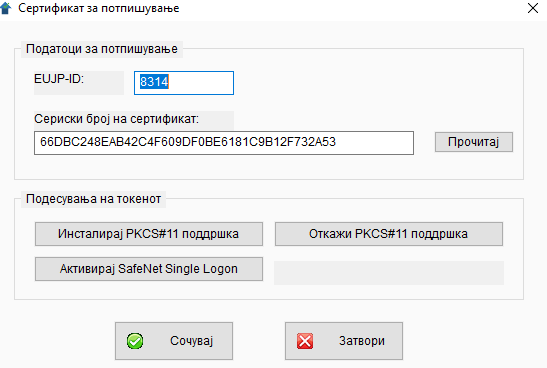
The window has two sections:
Signing data (top section):
- EUJP-ID — the identifier obtained when registering as a user on the eUJP portal (
eujp.gov.mk). Up to 16 characters. - Certificate serial number — the serial number of the qualified digital certificate used for signing (e.g. KIBS, Makedonski Telekom, Makedonija Online). Hexadecimal characters.
- The Read button automatically locates the valid qualified certificate in the Windows certificate store (
Cert:\CurrentUser\My) and fills in the serial number. The filter is not vendor-specific — it recognises every qualified signing certificate based on the Non-Repudiation bit set in thekeyUsageextension. If there are several valid certificates, the most recent one is chosen; if there are none, a message asks you to plug in the token.
Token settings (bottom section — three buttons that control how often a PIN is requested):
-
Install PKCS#11 support — on a fresh installation the DLL is already bundled with Setup.exe, so this button only confirms that
Pkcs11Interop.dllsits next to eFakturaWin.exe. If the DLL is accidentally deleted, the button offers a fallback download from NuGet (internet required). Once enabled, eFakturaWin itself asks for the PIN once per session (via its own dialog) and the token driver stays silent: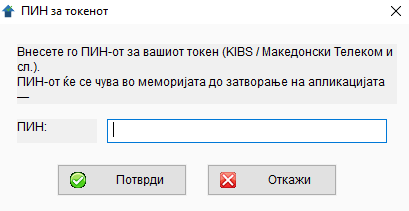
It works on tokens with a permissive policy (Makedonski Telekom/Gemalto and similar); on KIBS tokens the driver may still ask for the PIN on every operation due to hardware policy — in that case use "Enable SafeNet Single Logon" instead. - Uninstall PKCS#11 support — deletes
Pkcs11Interop.dlland reverts to the standard flow (the driver asks for the PIN). Useful if PKCS#11 on your token introduces more prompts rather than fewer. - Enable SafeNet Single Logon — writes a registry key that tells the SafeNet Authentication Client to cache the PIN for the duration of the session (only for SafeNet/KIBS tokens). An alternative to PKCS#11 when PKCS#11 does not help on a KIBS token.
To the right of the Single Logon button there is a status label showing whether PKCS#11 is active (1 PIN/session) or inactive (PIN per operation). Details on the strategies for reducing PIN prompts: §10.3.4.
For accounting firms
If you do invoicing for several clients with one and the same token and a single delegation on eUJP, you enter the EUJP-ID and the serial number only once in Service → Certificate, regardless of how many different issuers you have in the database.
That is all. The integration itself (JSON construction, JWS signature, HTTPS call) is handled by eFakturaWin.
10.3.4. Reducing PIN prompts ("Single Logon")¶
By default, the token driver (whether SafeNet for KIBS or Gemalto Classic Client for Makedonski Telekom) asks for the PIN on every signing operation. Some operations in eFakturaWin perform several signatures in a single call:
| Operation | How many signatures (default) |
|---|---|
| Send to UJP outbound invoice | 1 |
| Refresh status (right click on a single invoice) | 1 per day in the scan window — up to 7 |
| Status of sent invoices (Service → bulk) | Up to 7 — regardless of how many invoices there are |
| Sync inbound invoices | 1 per EUID fetched |
Refreshing the status for a single invoice that is 5 days old then requires 5 PIN prompts. The bulk option "Status of sent invoices" makes one /sales-invoice/changes call per day for the active issuer and maps all EUIDs from the response at once — that is why that variant always tops out at 7 PIN prompts, regardless of whether you have 5 or 500 sent invoices. It is the recommended path after a longer inactive period. This is still driver behaviour — the application already does as much as it can to reduce the number of calls.
Solution: enable PIN caching in the driver. With that setting the PIN is remembered for the duration of the session and is asked for only once — regardless of how many signatures are needed. The steps depend on your token type.
SafeNet Authentication Client (for KIBS)¶
- Open SafeNet Authentication Client Tools (from the system tray or the Start menu → SafeNet → SafeNet Authentication Client).
- Click the ⚙ Advanced View icon in the top right corner.
- In the left panel select the token.
- Go to Client Settings → Advanced tab.
- In some versions the path is Token Settings → Private Data Caching, or Tools → Settings → Client Settings → Advanced.
- Find the "Single Logon" option (in older versions labelled "Password caching mode" or "Always prompt user for password").
- Set it to "Enable Single Logon" — or, in old versions, uncheck "Always prompt".
- Press Save, remove the token and re-insert it.
Gemalto Classic Client (for Makedonski Telekom etc.)¶
- Open Gemalto Classic Client Toolbox (Start menu → Gemalto → Classic Client Toolbox).
- In the left panel select Card Administration (or Smart Card in some versions).
- Open Settings / Configuration → PIN Caching tab (or Session Settings, depending on the version).
- Enable the "Cache PIN for session" option (or "Single Sign-On", "Remember PIN until card removal").
- Save, remove the token and re-insert it.
After enabling (on either of the two drivers), the PIN is asked for once per session of eFakturaWin, not once per signature. The same effect applies to other applications that use the token in the same Windows session.
What to be aware of
- The configuration is per machine — every user has to do it on their own PC.
- The cached PIN is cleared when eFakturaWin is closed (or you sign out of Windows), when you remove the token, or after a configurable timeout — the next session asks for the PIN once again.
- Some corporate-managed tokens have a strict policy that disables this option. If "Single Logon" / "Cache PIN" is greyed out or unavailable, contact the IT administrator to relax the profile.
- Security is not compromised — the token still requires physical presence (USB) + knowledge of the PIN; only repeated entry of the same PIN in the same session is avoided.
10.4. Current status¶
What works (test environment, 1 June 2026)¶
- ✅ Submitting an outbound invoice — the Send to UJP button in the invoice list calls
/JSONReceiver/sales-invoices/send; UJP returnseuid+qr_link+timestampwhich are stored in the database. - ✅ Downloading the UJP PDF — from the context menu (right click) on a submitted invoice: Download UJP PDF.
/einvoice_api/documents/sales-invoice/pdfis called,base64is decoded and the file is saved asFaktura_UJP_<BR_FAK>.pdfand opened automatically in the default PDF reader. - ✅ Voiding a submitted invoice — the Void button (or right click → Void) asks for a reason from the
cb_void_reasoncodebook (S-1 through S-5), creates a void record with negative amounts anddocReferencesto the original, and sends it to UJP. The "Status" column in the list marks the affected invoices as "Voided" (original) and "VOID" (the void record). Details of the user flow: §5.7. - ✅ JSON construction — fully aligned with the official UJP examples (
primer_za_json_2.pdf). - ✅ JWS signature with a qualified token (KIBS, Makedonski Telekom, etc.) — via the Windows CryptoAPI (CNG); the token driver displays the PIN dialog.
- ✅ HTTP client for the UJP API —
curl.exewith a config file to avoid quoting issues. - ✅ Parsing of UJP responses (EUID, status, errors, QR link).
- ✅ Codebooks (VAT rates, currencies, payment types, rejection/void reasons) — synced with the UJP test environment. Full list of all codes: Appendix A; for the update mechanism see §A.0.
- ✅ VAT-registered gating of
sellerVatNumberandbuyerVatNumber— for non-VAT issuersnullis sent in the JSON instead of"МК"+EDB. Without this UJP rejects the invoice withE10003. See §3.2 and §4.1.4 for the setup. - ✅ Automatic buyer pre-check before submission. When you click Send to UJP, the application first queries the UJP registry for the buyer (
/companies/{edb}) and compares name, street, house number, postal code, city and VAT status with the local row inCodebooks → Partners. If anything differs, a dialog appears with "Local" and "UJP" columns for each differing field and asks whether the local partner should be updated with the UJP version. This preventsE10001/E10002/E1012(case-sensitive mismatch) before the PIN prompt for the JWS is consumed. The check is skipped for foreign partners and for partners whose EDB is not 13 digits.
What remains¶
-
✅ Refreshing the status from UJP for a submitted invoice. Two paths to the same operation:
- A single invoice: in the Invoice List select a row with an EUID → right click → Refresh status from UJP. The dialog shows a readable label for the known codes (
00 Draft,01 Submitted (New),03 Accepted,05 Rejected,07 Voided); the others are shown as "Status code N" until the mapping is confirmed by UJP. -
All sent ones: Service → Status of sent invoices. The option first shows a confirmation dialog (because it triggers up to 7 PIN prompts):
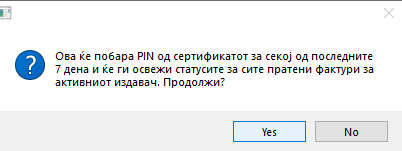
For the active issuer it then scans
/sales-invoice/changesper day for the last 7 days and from the response updatesfakturu.buyer_status/fakturu.buyer_status_atfor every EUID that received a new event. The "Status" column in the list refreshes automatically. The summary at the end shows "Updated N statuses out of M sent invoices":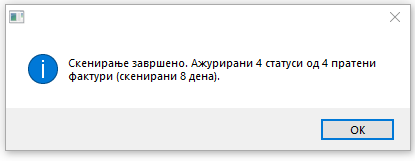 - The implementation goes through
/sales-invoice/changesrather than/sales-invoice/status(the latter endpoint returnsE5000in the test environment as of 2026-06-05; this is a confirmed workaround that works).
- A single invoice: in the Invoice List select a row with an EUID → right click → Refresh status from UJP. The dialog shows a readable label for the known codes (
-
✅ Rejection reason from the buyer. When the buyer rejects a submitted invoice,
/sales-invoice/changescarries the reason and any comment in the same event that carries status05. The application extracts and stores them infakturu.buyer_reject_reason_code,buyer_reject_reason_text,buyer_reject_comment. On the "Invoice entry" form, below the last row of the UJP panel, two additional lines appear:- Rejection reason: — a combined display in the form "O-3 — Wrong amount" (code + text as returned by UJP, or just one of them if the other is blank).
- Comment: — the free-form text the buyer may have written.
For invoices that are not rejected, those two lines remain blank (only the labels are visible). The rejection codes come from the
cb_reject_reasoncodebook (O-1…O-7) — see Appendix A.8. - 🚧 Inbound invoices — Accept / Reject. The code is written (/purchase-invoice/accept-rejectwith the same JWS envelope shape), but it has not yet been verified against a live test invoice. It is expected to work as soon as the first acceptable inbound invoice arrives for testing. - 🚧 QR code display on the printed PDF — theqr_linkfrom UJP is stored, but it is not yet drawn on the local PDF print. - 🚧 Delegation problem for specific users — when the certificate is bound to one company but you are submitting on behalf of another, an official two-step delegation procedure on eUJP is required. Does not affect all users. - 🚧 Production — when UJP opens the production environment for wide use.
10.5. What to do now¶
Before your phase begins (1 April 2027 at the earliest, for VAT-registered companies), and preferably during the voluntary period:
- Register on eujp.gov.mk. If you do not yet have a qualified certificate, obtain it now — the process takes 1–2 weeks.
- Enter the certificate. From Service → Certificate press Read to fill in the serial number automatically; enter the EUJP-ID too. This data will sit there until the UJP integration is active.
- Test the local flow. Create invoices, verify that the PDF looks good, export CSV — all of this works independently of UJP.
- Follow the blog. UJP activation will be announced at efakturawin.mk.
10.6. Frequently asked questions¶
Q: Do I have to use eFakturaWin for e-Invoice?
A: No. UJP has its own web portal (eujp.gov.mk) where you can manually enter every invoice. eFakturaWin automates this process.
Q: Are my current invoices (issued locally, not in UJP) valid? A: Yes, until your phase from the table in §10.1 begins — for VAT-registered companies that is 1 April 2027. From that day, every new invoice must go through UJP. If you register voluntarily earlier, the obligation applies immediately from the day of registration.
Q: What happens with invoices issued before UJP activation? A: They are "historical" and do not need to be changed. UJP does not require retroactive registration.
Q: Can I keep issuing invoices in eFakturaWin without sending them to UJP? A: Yes, until your phase begins — 1 April 2027 for VAT-registered companies. After that, submission to UJP is mandatory.
← Back to contents | Previous: Inbound invoices ← | Next: Security and backups →