1. Installation and first run¶
This chapter describes the steps for installing eFakturaWin on a new computer and the first launch of the application.
1.1. System requirements¶
| Component | Minimum | Recommended |
|---|---|---|
| Operating system | Windows 7 (32-bit or 64-bit) | Windows 10 or 11 (64-bit) |
| RAM | 2 GB | 4 GB or more |
| Free disk space | 100 MB | 500 MB (for the PDF archive) |
| Display | 1280 × 720 | 1920 × 1080 |
| Additional | — | Qualified token (KIBS, Makedonski Telekom, etc.) for UJP integration |
eFakturaWin is a native Windows application (Win32 PE) built with Harbour/HMG. The same executable runs on both 32-bit and 64-bit Windows versions — there are no separate 32/64-bit editions. It does not require .NET, Java, Python or any other runtime environment.
1.2. Download¶
The latest version can be obtained from:
- Website: https://www.efakturawin.mk → the "Download" section.
- E-mail: a link will be sent to you after contacting info@efakturawin.mk.
The downloaded package is a standalone installer installEFakturaWin.exe of approximately 3.5 MB. No prior unpacking is required — just double-click it to start the installation.
Windows SmartScreen warning
On the first launch of the downloaded installer, Windows may display a blue "Windows protected your PC" warning with the text "Microsoft Defender SmartScreen prevented an unrecognized app from starting". This is because the installer is not yet digitally signed with an EV code-signing certificate — a normal occurrence for new applications without reputation in Microsoft's systems, not an indicator of malicious software.
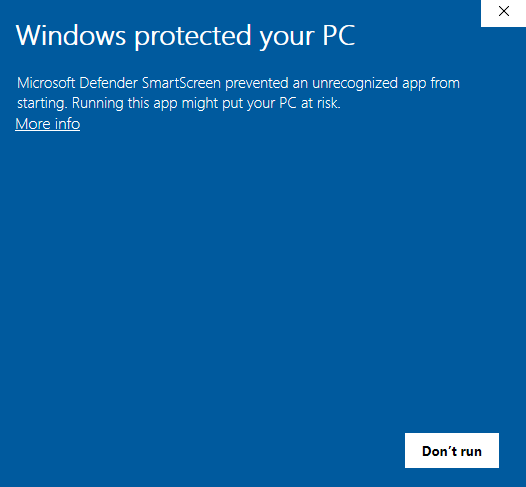
Click "More info" — the app details appear and the "Run anyway" button becomes available:
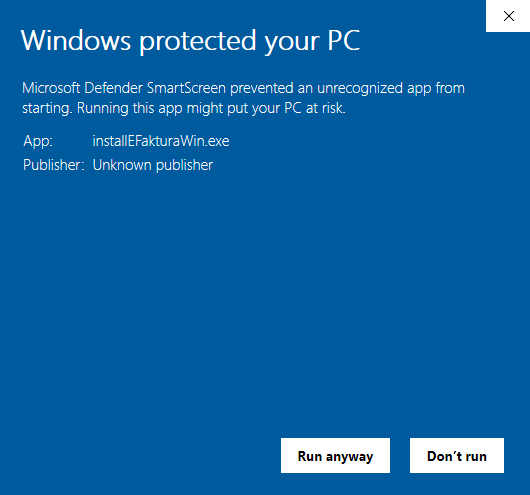
Choose "Run anyway" to proceed with the installation.
1.3. Installation¶
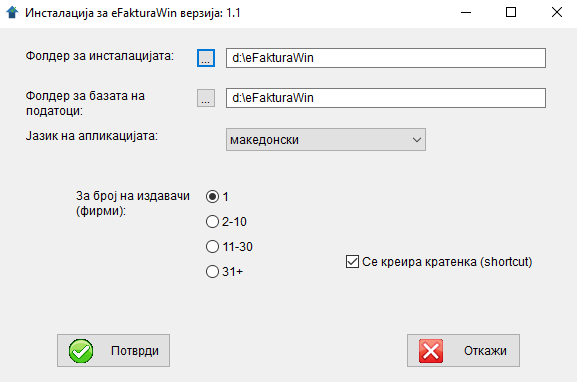
eFakturaWin has its own installer that only asks for the basic parameters and creates the required folders and files automatically.
-
Double-click the downloaded
installEFakturaWin.exeto start. -
In the installation window, enter (or confirm the suggested) parameters:
- Installation folder — where the application itself will be placed (
eFakturaWin.exeand supporting files). Default suggestion:D:\eFakturaWin, orC:\eFakturaWinif there is no D drive. - Database folder — can be the same or a separate one (for example, on a network drive if the database needs to be shared). Default suggestion: the same as the installation folder.
- Application language — Macedonian, Albanian or English.
- For number of issuers (companies) — one of the ranges: 1, 2–10, 11–30, or 31+. The choice affects the licence price.
- Create a shortcut — leave ticked if you want a desktop icon.
Folder selection
We do not recommend folders with Cyrillic characters in the name (e.g.
C:\Документи\…) — some Windows versions have trouble with non-ASCII paths. Also avoidProgram Files, because it requires administrative rights for writing to the database.Existing installation
If the chosen folder already contains
eFakturaWin.exeoreFakturaWin.mem, the installer will refuse to overwrite and display the message "An installation already exists in this folder!!". Choose a different folder or first delete the old installation. - Installation folder — where the application itself will be placed (
-
Click Confirm. The installer:
- creates the required folders if they do not exist,
- copies
eFakturaWin.exeandujp_sign.ps1into the installation folder, - generates an encrypted
eFakturaWin.memwith information about the installation (date, disk serial number, trial validity — 30 days), - and optionally creates a desktop shortcut.
-
At the end, a message will appear with the serial number of your installation:
The trial version of the eFakturaWin program has been successfully installed!
Its validity is 30 days.
... Installation serial number: NNNNNNNNNNNNNNN
Keep the serial number safe
You will need this serial number later when purchasing a licence (see §1.6). We recommend writing it down in a safe place or taking a screenshot of the message.
What is installed in the folder
eFakturaWin.exe— the application itself.eFakturaWin.mem— encrypted file with licence and installation information.eFakturaWin.db— SQLite database (created automatically on first run if it does not exist).ujp_sign.ps1— helper PowerShell script for JWS signing toward UJP.- Supporting folders and files.
Backups
We recommend regularly copying the entire folder (especially eFakturaWin.db and eFakturaWin.mem) to an external drive or network location. The database contains all your invoices, partners and data.
1.4. First run¶
Launch eFakturaWin.exe. On the first run:
- Licence check. The application will read the
eFakturaWin.memfile and verify: - whether the disk serial number matches,
- whether the installation folder is the same as on the first opening,
- whether the system date is not set back.
If something does not match, the application will close with an error message. Contact us if this happens unexpectedly.
-
Database creation. If
eFakturaWin.dbdoes not exist, it will be created automatically with an empty schema (no partners, no invoices) and a default userADMIN. -
Registration of the first issuer (company). Without at least one registered issuer, the application cannot proceed. You will be offered an "Issuer profile" window for entry.
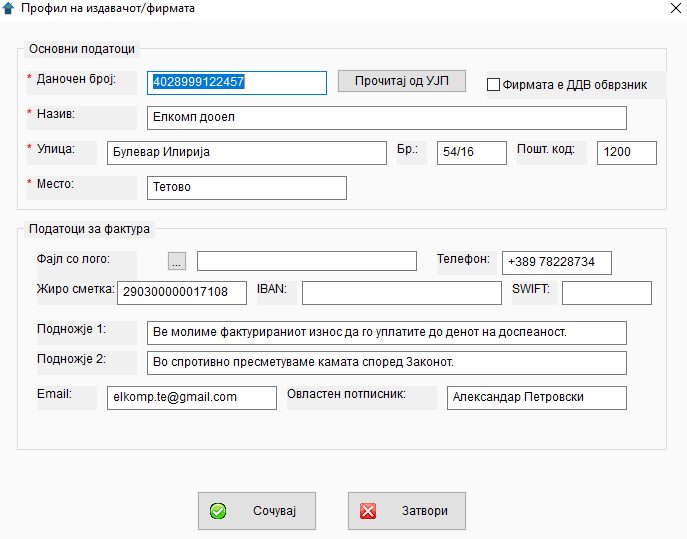
Minimum data:
- EDB (Unique Tax Number). Enter it first — it sits at the top of the form.
- Company name (e.g. "БИРО-ТРИМ 1 ДООЕЛ").
- Address (street, number, postal code, city).
- Authorised signatory (first and last name).
Recommended: Read from UJP instead of manual entry (if you already have a certificate)
To the right of the Tax number field there is a Read from UJP button. Enter the EDB (13 digits) and press the button — eFakturaWin calls the UJP API and automatically fills in Name, Street, Number, City, Postal code and the "VAT-registered" status with the correct values from the UJP registry. This is the safest way to avoid later errors of type
E10001/E10002due to name mismatches (the UJP validator is case-sensitive — see §3.2).Prerequisite: the EUJP-ID and the certificate serial number must first be set in Service → Certificate. If this first run is also your first time setting things up at all (no certificate), enter the fields manually now — the button will work later, when you configure the certificate, and you can then use it to refresh the profile.
Logo
The company logo (PNG or JPG, recommended approximately 1024 × 736 pixels) can be added now or later via the menu
Codebooks → My Company Profile.Detailed description of all fields: chapter 3 — Issuer profile.
-
First sign-in. After issuer registration, the sign-in window opens:
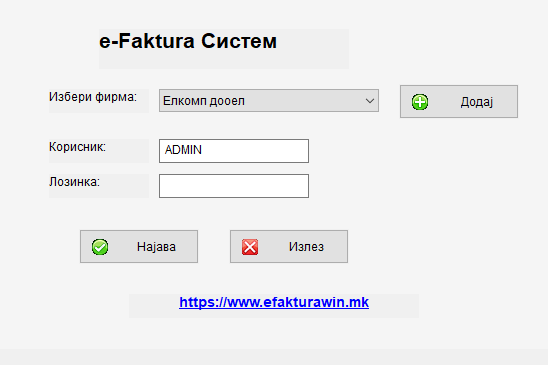
- Select company: choose the issuer from the drop-down list.
- User: automatically populated with
ADMIN. Leave it as is or enter another user, if one exists. -
Password: leave the field blank on the first run, because
ADMINhas not yet set a password. After the first sign-in, the message "Password set successfully" will appear. If you want to set a password, enter it now — you will use it to sign in from then on.Caution
If you enter a password on the first sign-in, that is the password you will need going forward. If you forget it, the only way to reset it is by opening
eFakturaWin.dbdirectly with a SQLite tool and clearing thepassword_hashandsaltcolumns on the user's row. -
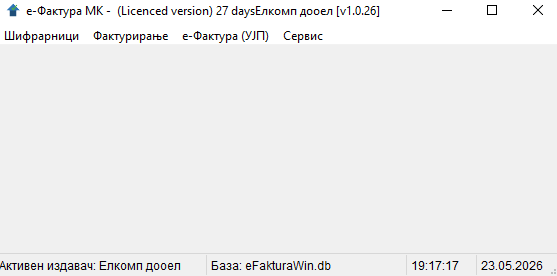
Main window. After a successful sign-in, the main window opens with the menu:
- Codebooks — Company profile, Sites, Partners, Clauses, Articles.
- Invoicing — Invoice list, new invoice, pro-forma invoice list, new pro-forma invoice.
- e-Invoice (UJP) — Inbound invoices, status of sent invoices.
- Service — About the application, Sign in again, Change password, Certificate (see §1.5), User manual, Language (Macedonian / Albanian / English), Licence data, Key installation.
Changing the interface language
eFakturaWin is available in Macedonian (default), Albanian and English. The choice is made via Service → Language and instantly switches all menus, forms and messages. The choice is remembered for subsequent launches.
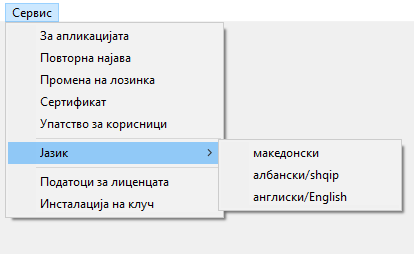
The Albanian and English translations ship together with the application; no separate installation is required.
1.5. Signing certificate configuration¶
Once you have registered an issuer and signed in, the next step is to tell eFakturaWin which qualified certificate it should use for signing e-invoices toward UJP. This is a one-off configuration per installation — a single token serves all issuers, no matter how many clients you have.
- Plug in the token (USB or smart card) and verify that the driver (SafeNet, Gemalto, etc.) recognises it.
- From the main menu: Service → Certificate. The "Signing certificate" window opens.
- Press Read — the application automatically locates the valid qualified certificate in the Windows certificate store and fills in the Certificate serial number field.
- Enter the EUJP-ID — the personal identifier you received when registering as a user on the eUJP portal (
eujp.gov.mk). Without it, submissions to UJP will be rejected. - Save.
PKCS#11 signing is active after installation
Pkcs11Interop.dll ships with Setup.exe and is placed next to eFakturaWin.exe immediately after installation — the "Install PKCS#11 support" button in the same window is there only for verification/repair (e.g. if the DLL is accidentally deleted). Details for reducing PIN prompts (PKCS#11 vs SAC Single Logon) are in §10.3.4.
Field details + accounting-firm scenarios
The full description of the field, the vendor-agnostic filter behind the Read button (why it works for KIBS, Makedonski Telekom, Makedonija Online and all other authorised certificate authorities), and the single-delegation flow for multiple clients — see §10.3.3. For the one-off registration of the certificate on the eUJP portal (/certificates), without which UJP will reject submissions — see §10.3.2.
Without a certificate — what works and what doesn't
Even without a configured certificate, you can: enter partners / sites / articles, create and save invoices and pro-forma invoices, print PDFs, export CSVs. You cannot send to UJP, pull statuses, download official UJP PDFs, accept/reject inbound invoices, or use the Read from UJP button on the partner/issuer forms. All those features require an active token + configured EUJP-ID and serial number.
1.6. Trial version and licence activation¶
On the first run the application works in 30-day trial mode. In the title bar of the main window you will see:
where N is the number of remaining days.
To continue working after 30 days:
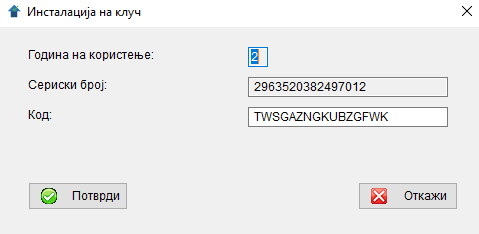
1. In the menu Service → Licence data you will see your serial number.
2. Contact us for an activation key.
3. In Service → Key installation enter the received key.
4. If the key is valid, the message "Key installed successfully. The licence expires on: …" will appear.
Prices are not yet finalised
We expect an official price list towards the end of June 2026.
Watch the system date
If the computer's date is set back (for example, set to a day in a previous year), eFakturaWin will detect this on the next opening and refuse to run. This is a measure against bypassing the trial period.
1.7. If something does not work¶
| Problem | Possible solution |
|---|---|
| "The file eFakturaWin.mem is missing!!!" | eFakturaWin.mem has been deleted or moved. Restore it from a backup or obtain a new copy. |
| "Unauthorised copy of the program!" | The disk serial number is different from the one at installation time. Contact us for help if you have replaced the hard disk. |
| "The folder is invalid!" | The installation folder has been moved. Return it to the original location or register a new installation. |
| "Bad system date!!" | The system date is earlier than the installation date or the last run. Fix the Windows date. |
| The main window does not open | Verify that you have created at least one issuer. Without an issuer, the application cannot proceed. |
For any problem not listed here, contact us at info@efakturawin.mk with a description of the symptoms and (if possible) a screenshot.