9. Inbound (received) invoices¶
Inbound invoices (or "received invoices") are the invoices that other companies issue to you as a buyer. In the new UJP e-Invoice system (Phase 2, May 2026), these invoices automatically arrive in your UJP inbox and you must accept or reject them within 8 days.
eFakturaWin has a local interface that synchronises with UJP — fetching new inbound invoices, accepting / rejecting them and downloading the UJP-generated PDF are fully functional.
9.1. Where it opens¶
From the main menu: e-Invoice (UJP) → Inbound invoices.
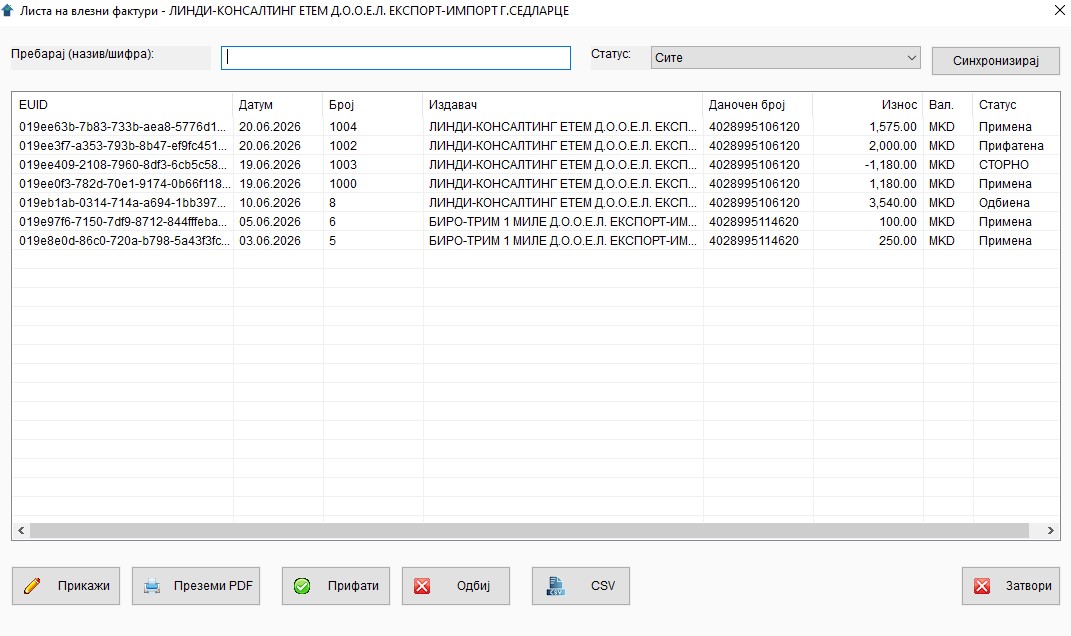
The "Inbound invoice list" window shows all inbound invoices for the active issuer (the buyer company).
9.2. The toolbar above the list¶
Above the grid there are three controls for filtering and fetching:
| Control | Description |
|---|---|
Search |
Free-form text — searches by EUID, document number, issuer name and EDB. Results update as you type. |
Status (drop-down) |
Filter by status — (all) / Received / Accepted / Rejected / Voided. |
| Sync | Top right. Pulls new inbound invoices from UJP — see §9.6. |
9.3. Columns in the list¶
| # | Column | Description |
|---|---|---|
| 1 | EUID |
Unique identifier assigned by UJP |
| 2 | Date |
Invoice date (from the supplier) |
| 3 | Number |
The supplier's invoice number |
| 4 | Issuer |
Name of the supplier company |
| 5 | EDB |
Supplier's EDB |
| 6 | Amount |
Total amount |
| 7 | Cur. |
Currency |
| 8 | Status |
One of: Received / Accepted / Rejected / Voided |
9.4. Statuses¶
| Status | Meaning |
|---|---|
| Received | Arrived from the supplier, awaiting your decision |
| Accepted | You have accepted it — it will be included in your VAT declaration |
| Rejected | You rejected it with a reason — it will not be included in VAT |
| Voided | The supplier voided it (submitted a cancellation request) |
9.5. Buttons¶
Below the list:
| Button | What it does |
|---|---|
| Show | Opens a detailed view of the selected invoice (§9.7) |
| Download PDF | Downloads the UJP-generated PDF (with the official QR code for verification) and opens it in the default PDF viewer |
| Accept | Marks the invoice as accepted and sends confirmation to UJP (§9.8) |
| Reject | Marks the invoice as rejected and sends a reason + optional comment to UJP (§9.9) |
| CSV | Exports the selected inbound invoices to CSV for the general ledger. Details: chapter 8 — CSV export |
| Close | Closes the window |
All actions are also available via right click on a row in the grid.
9.6. Syncing with UJP¶
Clicking Sync (top right):
- eFakturaWin calls
POST /purchase-invoice/idswith a JWS-signed date range (last 30 days), and collects a list of all EUIDs of inbound invoices for the active EDB. - For each new EUID (one you do not have locally), it calls
GET /purchase-invoice/payload/{euid}and records a row in the localfakturu_intable. - On completion a summary message appears: "Fetched N new, skipped M already existing, failed K.".
Token PIN
Because every call to UJP is signed with your qualified certificate, the token will ask for a PIN. If you use SafeNet and want the sync to go without a PIN prompt per invoice, enable "Single Logon" mode in the SafeNet Authentication Client — the PIN is remembered for the duration of the session.
Prerequisite: configured certificate
Without EUJP-ID and certificate serial number set in Service → Certificate, the Sync button will report an error "The issuer does not have a complete UJP configuration". First go through §1.5 or §10.3.3. In addition to the entry in the application, the certificate must also be registered once on the eUJP portal — see §10.3.2.
9.7. Detailed view¶
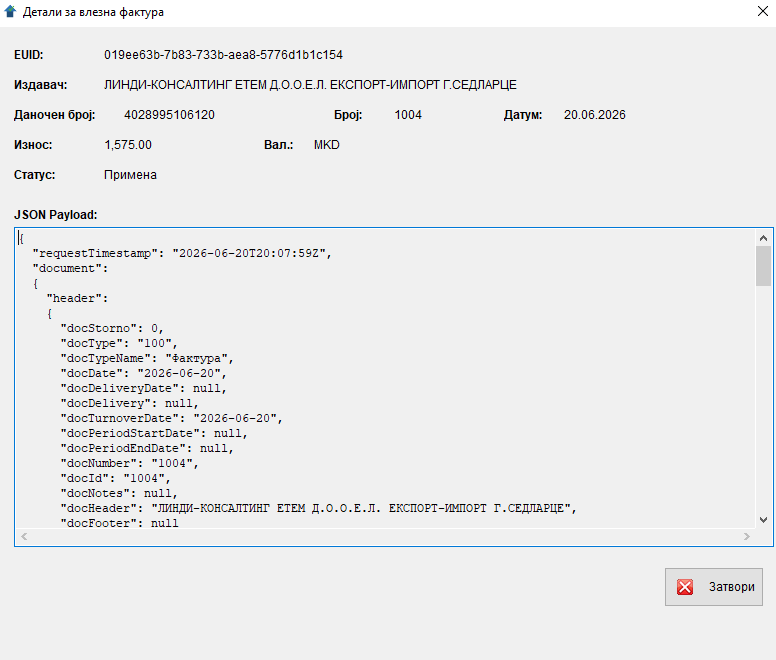
A double click (or Show) on a row opens an "Inbound invoice details" window. This window shows:
- EUID, name and EDB of the issuer.
- Invoice number and date.
- Amount + currency, and current status.
- The entire JSON from UJP, in a read-only edit box with a fixed font (Courier New). This is the most direct way to see exactly what was received.
JSON structure
The JSON is the UJP specification — every field is documented in the UJP e-Invoice documentation. It is also used as a technical reference if something does not display correctly in the summary.
9.8. Accepting¶
- Select an inbound invoice with status "Received".
- Press Accept (or right click → Accept).
- A confirmation message appears: "Are you sure you want to accept this invoice?".
- eFakturaWin signs with your qualified certificate and sends
POST /purchase-invoice/acceptto UJP. - On a successful response: the status changes locally to "Accepted" and "The invoice was successfully accepted in UJP." appears.
Acceptance is final
Once the invoice is accepted in UJP, it can no longer be rejected. Review the JSON before pressing Accept.
9.9. Rejecting¶
- Select an inbound invoice.
- Press Reject.
- The "Reject inbound invoice" window opens with the EUID in the title:
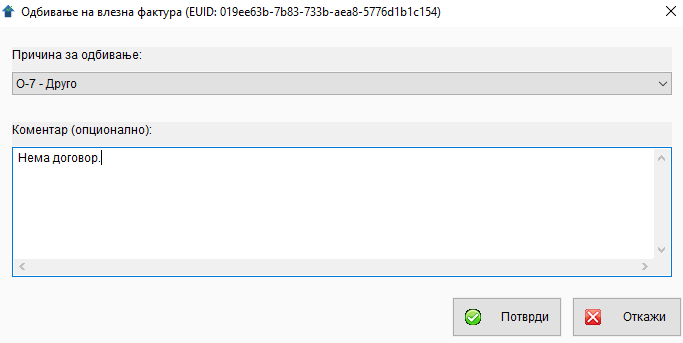
| Field | Description |
|---|---|
Rejection reason * |
Drop-down with official UJP reasons (cb_reject_reason): O-1 Incorrectly calculated VAT, O-2 Double invoicing, O-3 Wrong buyer data, etc. (full list: Appendix A.9). |
Comment (optional) |
Free-form text. Recommended for O-7 (Other). |
- Press Confirm. eFakturaWin signs and sends
POST /purchase-invoice/rejectwith the reason and the comment. - On a successful response: the status changes locally to "Rejected" + the message "The invoice was successfully rejected in UJP.".
9.10. Downloading the PDF¶
- Select an inbound invoice (with any status — it need not be accepted).
- Press Download PDF.
- eFakturaWin calls
POST /purchase-invoice/pdf, decodes the base64 response, saves it in a temporary folder and opens it with the default PDF viewer.
The PDF is the official UJP-generated document with the QR code for verification — the same one the supplier sees.
9.11. Tips¶
- 💡 Sync every day. UJP allows 8 days for a response; regular syncing means you will not miss deadlines.
- 💡 Review the JSON before accepting. If something is not clear (a line, the VAT, the description), review it in detail in the JSON before pressing Accept.
- ⚠️ Be careful with O-7 (Other) on reject. When you reject an invoice with the reason "Other", write a short explanation in the comment — the supplier sees it too, and it helps them fix things on their side.
- 💡 CSV export = a quick substitute for your general ledger. Inbound invoices can be exported to a CSV that your accountant feeds straight into the general ledger. See chapter 8.
← Back to contents | Previous: CSV export ← | Next: UJP integration →