4.1. Partner codebook¶
Partners are all the trading entities you work with — the buyers you issue invoices to and the suppliers you receive invoices from. The partner codebook keeps their basic data (name, address, EDB, contact) in one place for reuse across the whole application.
4.1.1. Where it opens¶
From the main menu: Codebooks → Partners (Buyers and suppliers).
The "Partner Codebook" window shows a list of all partners linked to the active issuer.
4.1.2. Columns in the list¶
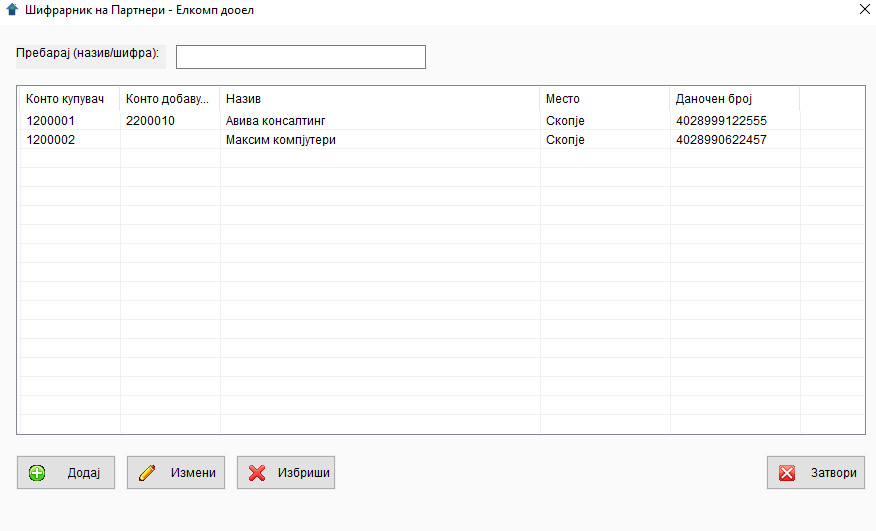
| Column | Description |
|---|---|
ID |
Internal identifier (hidden). |
Buyer account |
General ledger account when the partner acts as a buyer. Used in general-ledger export. |
Supplier account |
General ledger account when the partner acts as a supplier. |
Name |
Company name. |
City |
City. |
EDB |
Tax number. |
Above the list there is a Search field in which you can type — the list automatically filters by name, account or EDB.
4.1.3. Buttons¶
Below the list:
- Add — new partner.
- Edit — edit the selected row (or double-click).
- Delete — delete the selected row.
- Close — close the window.
4.1.4. Adding and editing a partner¶
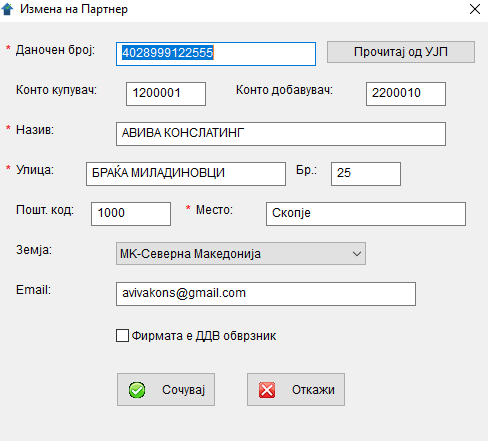
Clicking Add or Edit opens a "Partner" window with the following fields:
Identification¶
The fields are shown in the same order as in the form.
| Field | Description | Required |
|---|---|---|
Tax number (EDB) |
EDB or foreign TIN. Up to 15 characters. Enter it first — it sits at the top of the form so that the Read from UJP button can then automatically fill the remaining fields (see below). | ✅ yes |
Buyer account |
General ledger account number (e.g. "1200"). Used when this partner is your buyer. Up to 16 characters. | no |
Supplier account |
Account number when the partner is a supplier. Up to 16 characters. | no |
Name |
Partner name (e.g. "КОМЕРЦИЈАЛНА БАНКА АД Скопје"). Up to 100 characters. | ✅ yes |
Street |
Street of the seat. Up to 60 characters. | ✅ yes |
No. |
Street number. Up to 10 characters. | no |
Postal code |
Postal code. Up to 10 characters. | no |
City |
City. Up to 40 characters. | ✅ yes |
Country |
Country code (e.g. "MK", "DE", "IT"). Two-letter ISO code. | no (defaults to MK) |
Email |
E-mail address. Up to 80 characters. Used in UJP integration for notifications. | no |
Company is VAT-registered |
Check box. Tick it if the partner is in the VAT regime. Affects the UJP e-invoice: for VAT-registered companies the e-invoice carries buyerVatNumber = "МК"+EDB; for non-VAT companies this field is sent as null — otherwise UJP rejects the invoice with error E10003. Existing partners after the migration are set to "no" by default — review them before sending their invoices. |
(depends on the partner's status) |
Accounts (general ledger)
The Buyer account and Supplier account fields are only relevant if you work with a general ledger. If you do not — leave them blank.
Full list of two-letter ISO country codes: Appendix A.1 — Countries.
Read from UJP — recommended
To the right of the Tax number field there is a Read from UJP button. Enter the partner's EDB (13 digits) and press the button — eFakturaWin calls the UJP API and automatically fills in Name, Street, No., City, Postal code, Country and Company is VAT-registered with the correct values from the UJP registry. This avoids all "wrong name/address" errors.
Prerequisite: the EUJP-ID and certificate serial number must be set in Service → Certificate, and there must be a currently active issuer (its EDB is used in the X-EDB header of the call).
Why this matters — UJP is case-sensitive
The UJP validator is very strict and case-sensitive (it distinguishes lowercase from uppercase) around Name, Street, No. and City. "БИРО-ТРИМ" ≠ "Биро-Трим" ≠ "биро-трим" — every variant is rejected. A minimal difference (an extra dot, an abbreviation, a trailing space, new vs. old Cyrillic variants) causes invoices to be rejected with errors such as E10001 / E10002 / E1012.
If you are not sure of the exact text, use the Read from UJP button instead of typing manually. Alternatively — open the UJP registry and copy the exact text: 🔗 https://efakturatest.ujp.gov.mk/companies. The same rule applies to your own profile as an issuer (see §3.2).
For UJP integration — partner country
We recommend entering the correct country for foreign partners — MK for domestic ones (the default if you leave it blank) and the appropriate ISO code for export ones (DE, IT, US, etc.). This affects:
- the choice of banking details on the PDF (Giro account for MK vs. IBAN/SWIFT for export),
- language and format of the PDF (Macedonian vs. English),
- which UJP fields are populated on the e-invoice (domestic EDB in
buyerTinfor residents, or foreign EDB inbuyerForeignTinplusbuyerCCodefor non-residents).
Saving¶
Press Save to save the partner. The system checks whether the required fields are populated — if any are missing, the message "Enter…!" appears and the cursor jumps to the relevant field.
With Cancel you leave without saving.
4.1.5. Deleting a partner¶
Select a partner in the list and press Delete.
A partner with invoices cannot be deleted
This is a safeguard against losing the audit trail. The message appears:
This partner cannot be deleted because an invoice has been created for them.
If you want to "deactivate" a partner, the only options are to rename it (e.g. "КОМЕРЦИЈАЛНА БАНКА АД (inactive)") or to leave it as is — it will not get in your way.
4.1.6. Tips¶
- 💡 Enter partners before issuing invoices. This saves time — when creating an invoice you just pick the partner from a drop-down list.
- 💡 Watch the EDB. Double-check the EDB — an invoice with an incorrect EDB will not pass UJP validation.
- 💡 General-ledger accounts. If your accountant requires a CSV for the general ledger, the accounts must be correct. Ask the accountant for a list of valid accounts before you start.
- ⚠️ Do not duplicate partners. If the same partner exists twice (e.g. "Комерцијална Банка" and "КОМЕРЦИЈАЛНА БАНКА АД"), invoices will be split and hard to search through. Use "Search" before adding a new one.
← Back to contents | Previous: Issuer profile ← | Next: Sites / Locations →